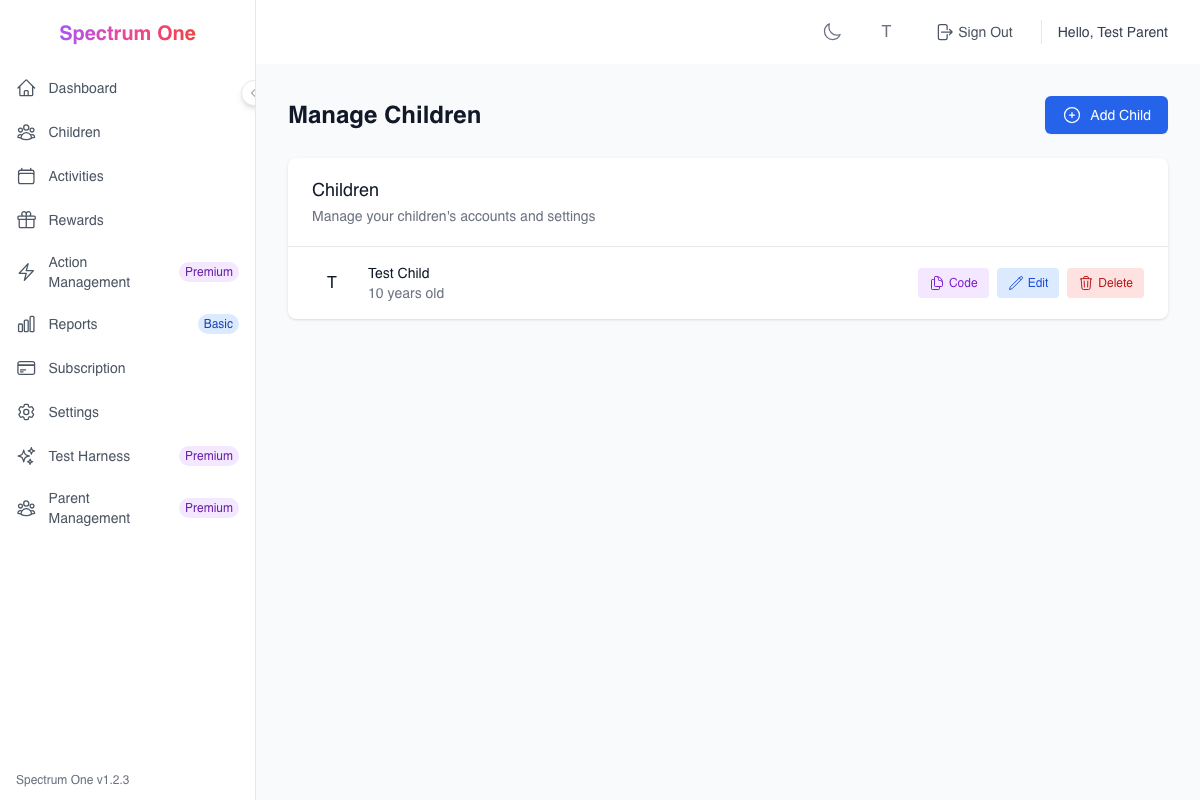
Child Management
The Child Management screen allows you to add, edit, and manage your children's profiles within Spectrum One. This is where you set up each child's account and configure their individual settings.
Overview
From the Child Management screen, you can:
Add New Children - Create profiles for each child you want to manage
Edit Child Profiles - Update names, ages, preferences, and settings
Manage Access - Set up login credentials and permissions
Configure Preferences - Customize ADHD/autism support settings
Adding a New Child
Basic Information
When adding a new child, you'll need to provide:
- Child's Name - Full name for identification
- Age/Date of Birth - Helps customize age-appropriate activities
- Profile Picture - Optional photo for easy recognition
- Timezone - Ensures activities are scheduled correctly
Account Setup
- Username - Simple, memorable login name
- Password - Secure password (can be changed later)
- Email (Optional) - For older children who have email
ADHD Tip: Choose simple, consistent usernames that children can easily remember. Avoid complex combinations that might cause login frustration.
Accessibility Settings
Configure specific support options:
- Visual Preferences - Color themes, contrast settings
- Interaction Style - Button sizes, animation preferences
- Reminder Settings - Frequency and type of notifications
- Sensory Considerations - Sound, vibration, visual effects
Child Profile Management
Profile Information
Each child profile includes:
Personal Details
- Name and nickname preferences
- Age and developmental stage
- Interests and favorite activities
- Special considerations or notes
Preferences
- Preferred activity categories
- Reward preferences
- Communication style
- Learning preferences
Settings
- Notification preferences
- Privacy settings
- Parental controls
- Activity restrictions
Editing Profiles
You can update any child's information at any time:
- Select the child from the management screen
- Click Edit Profile to modify details
- Update information as needed
- Save changes to apply updates
Autism Support: Maintain consistent profile information to avoid confusion. Changes to usernames or major settings should be discussed with the child beforehand.
Multiple Children Management
Family Overview
When managing multiple children:
- Quick switching between child profiles
- Bulk actions for common tasks Basic+
- Comparison views to track relative progress
- Family reports showing all children's activities
Individual vs. Shared Settings
- Individual: Each child has their own activities, rewards, and progress
- Shared: Family activities that multiple children can participate in
- Collaborative: Activities that require cooperation between siblings
Subscription Tier Features
Free Tier
- Single child management
- Basic profile settings
- Standard activity creation
Basic Tier Basic
- Multiple children (up to 3)
- Advanced profile customization
- Bulk management tools
- Child comparison reports
Premium Tier Premium
- Unlimited children
- Advanced analytics per child
- Custom accessibility profiles
- Priority support for setup
Parent Collaboration
Basic+Inviting Other Parents
You can invite other caregivers to help manage children:
- Send invitation via email
- Set permissions for what they can access
- Manage roles (full access, view-only, specific children)
- Monitor activity from all collaborating parents
Permission Levels
- Full Access - Can modify all settings and activities
- Activity Manager - Can create and manage activities only
- View Only - Can see progress but not make changes
- Child Specific - Access limited to specific children
Security and Privacy
Account Security
- Strong passwords required for all accounts
- Two-factor authentication available Premium
- Session management to control active logins
- Activity logging for security monitoring
Privacy Controls
- Data sharing settings between parents
- External sharing controls for reports
- Child privacy settings as they grow older
- Account deletion options when needed
Troubleshooting Common Issues
Child Can't Log In
- Verify username and password are correct
- Check if account is active
- Ensure child is using the correct login page
- Reset password if needed
Profile Information Missing
- Check if all required fields are completed
- Verify profile was saved properly
- Refresh the page and try again
- Contact support if data appears lost
Multiple Parent Conflicts
- Review permission settings
- Check for conflicting activity schedules
- Communicate changes with other parents
- Use activity notes for coordination
Best Practices
Setting Up Profiles
- Involve the child in creating their profile when appropriate
- Start simple and add complexity gradually
- Regular updates as children grow and change
- Backup important information regularly
Managing Multiple Children
- Consistent naming conventions for easy identification
- Regular reviews of each child's progress
- Individual attention to each child's unique needs
- Fair distribution of activities and rewards
Privacy and Safety
- Age-appropriate privacy settings
- Regular password updates
- Monitor activity without being intrusive
- Teach digital safety as children grow